![FUSE-workforce-management-logo.png]](https://www.fuseworkforce.com/hs-fs/hubfs/fuse-website/FUSE-workforce-management-logo.png?height=40&name=FUSE-workforce-management-logo.png)
Enabling Profiles/Certifications
To view your employee certifications, you must first enable the options in your Academy Settings.
- Go to Admin > Academy Settings
- Search for 'team' and you will see the option for Team Member Settings
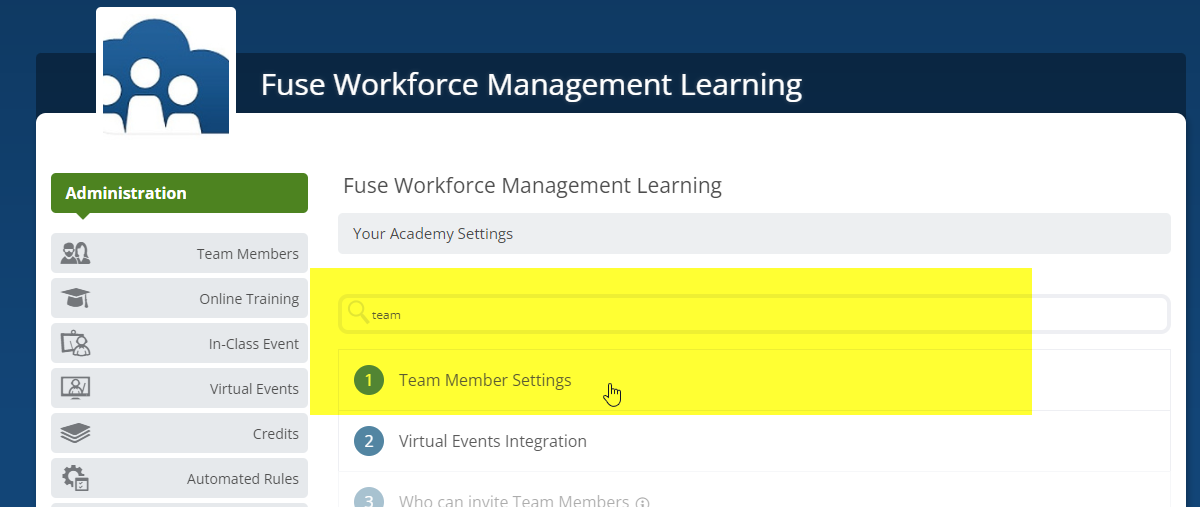
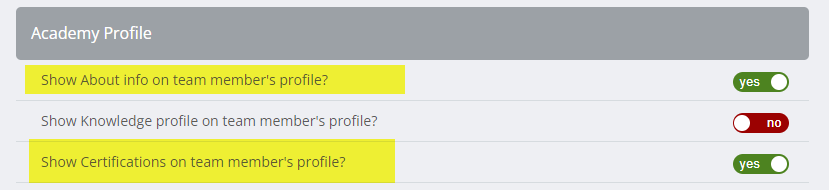
- Scroll down to the Academy Profile section, and you will want to enable these options:
- Show About info on team member's profile?
- Show Certifications on team member's profile?
- Scroll down to the bottom of the screen and click the Save button.
Viewing Profiles/Certifications
After the options have been enabled, you will be able to view employee profiles and certifications.
- Go to Admin > Manage Team Members.
- Next to each Team Member Name, you will see a link to view their profile. Clicking on this link will open their profile in a separate web browser tab.
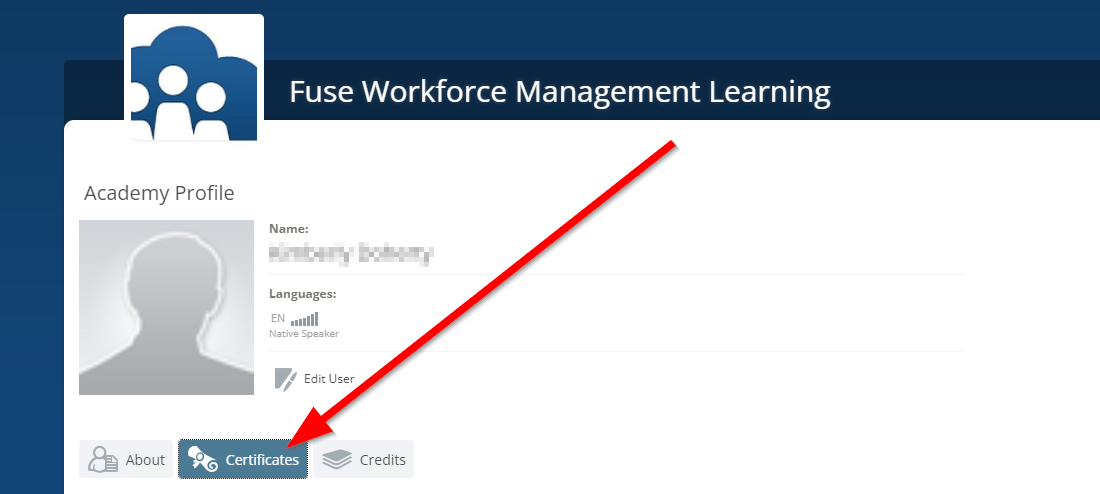
- This new web browser tab will have a Certificates tab where you can view all the certifications the employee has earned.