![FUSE-workforce-management-logo.png]](https://www.fuseworkforce.com/hs-fs/hubfs/fuse-website/FUSE-workforce-management-logo.png?height=40&name=FUSE-workforce-management-logo.png)
Download Middleware
- Go to Menu > Settings > System > Terminals (External)
- Click the MIDDLEWARE (ZIPPED) button on the top right of the screen
- Extract this folder to C:\MW
Install the correct Version of Java
- Uninstall all versions of Java from your device
- Install (As Admin or Run as Admin) the following version of Java
- https://corretto.aws/downloads/resources/8.302.08.1/amazon-corretto-8.302.08.1-windows-x64-jre.msi
- Leave all the defaults, and click Next until you click Finish
- After the Java installation is completed, open the file C:\MW\conf\wrapper.conf in notepad
- change the line “wrapper.java.command” to point to the program java.exe that was installed
- wrapper.java.command=C:\Program Files\Amazon Corretto\jre8\bin\java.exe
Install & Run Middleware
- Go to the C:\MW folder on your device
- You will need to choose one of the following options, right-click, and choose Run as Administrator
- Install _and_Start_MW_Service.cmd
- Install _MW_Sofware.cmd
- Install _MW_as_Application.cmd
- Once Middleware is installed, choose one of the following options, right-click, and choose Run as Administrator
- Start_MW_as_Application.cmd
- Start_MW_as_Application_Hide_Console.cmd
- Start_MW_as_Service.cmd
First Time Configuration
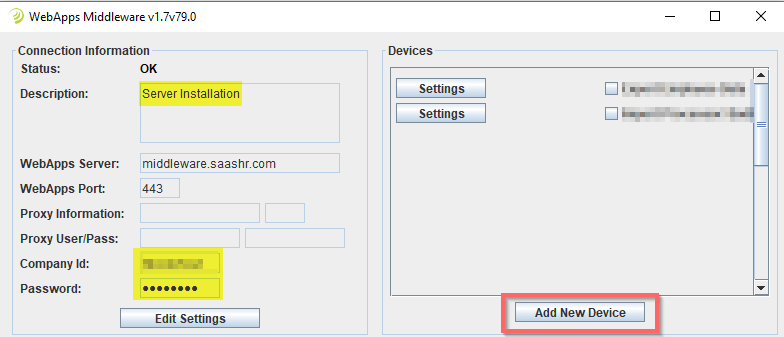
- The first time you use middleware, you will need to enter in the following data:
- Description: A description of the device where this installation is kept. This will help with future troubleshooting.
- Company ID: This is your Company Shortname.
- Password: If you do not know your password, please reach out to support@fuseworkforce.com for assistance.
- You should now be ready to start Adding New Devices!
Please reach out to support@fuseworkforce.com if you need any assistance with this process.
