![FUSE-workforce-management-logo.png]](https://www.fuseworkforce.com/hs-fs/hubfs/fuse-website/FUSE-workforce-management-logo.png?height=40&name=FUSE-workforce-management-logo.png)
How do I initiate payroll, add new pay statements, or import payroll data?
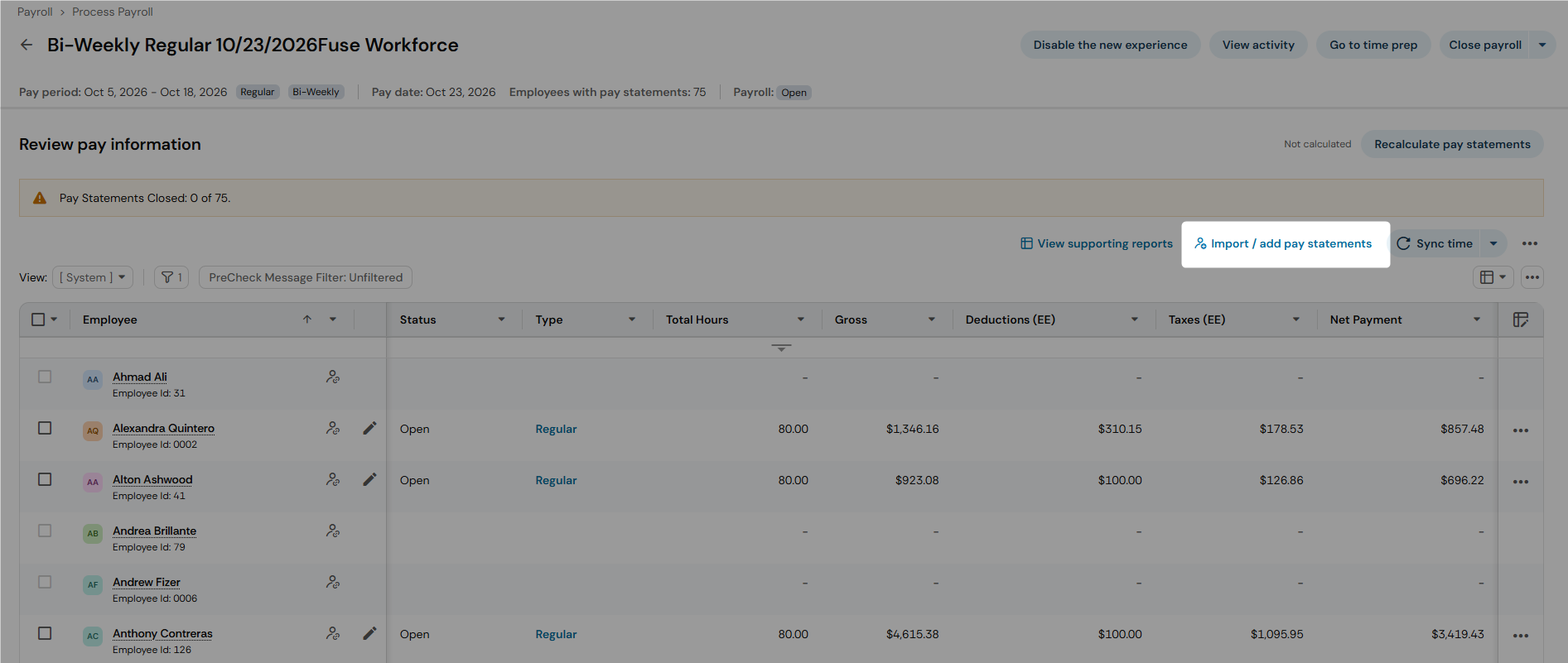
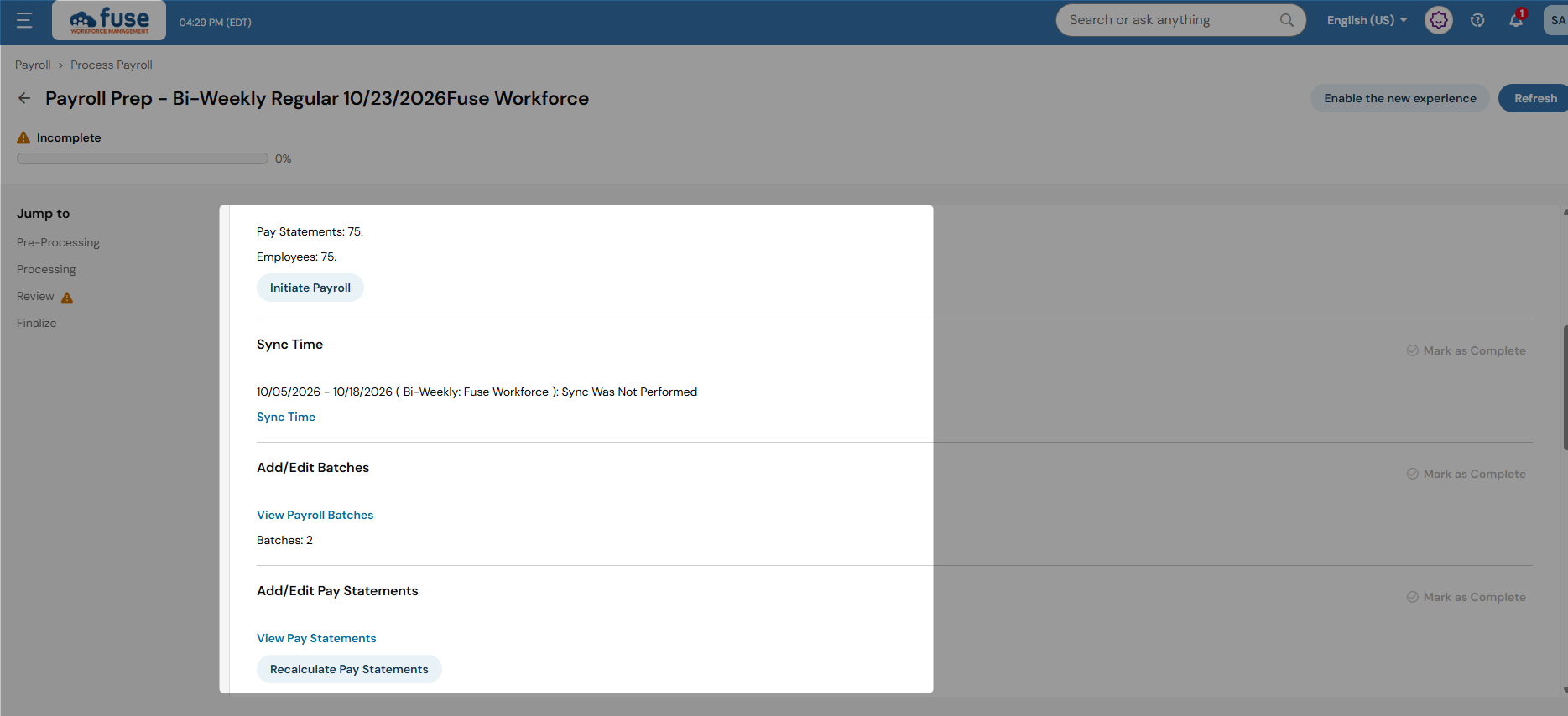
Initiating payroll, adding new pay statements, and importing payroll data are now all kept in the same location, using the button to Import / add pay statements on the top right of the screen.
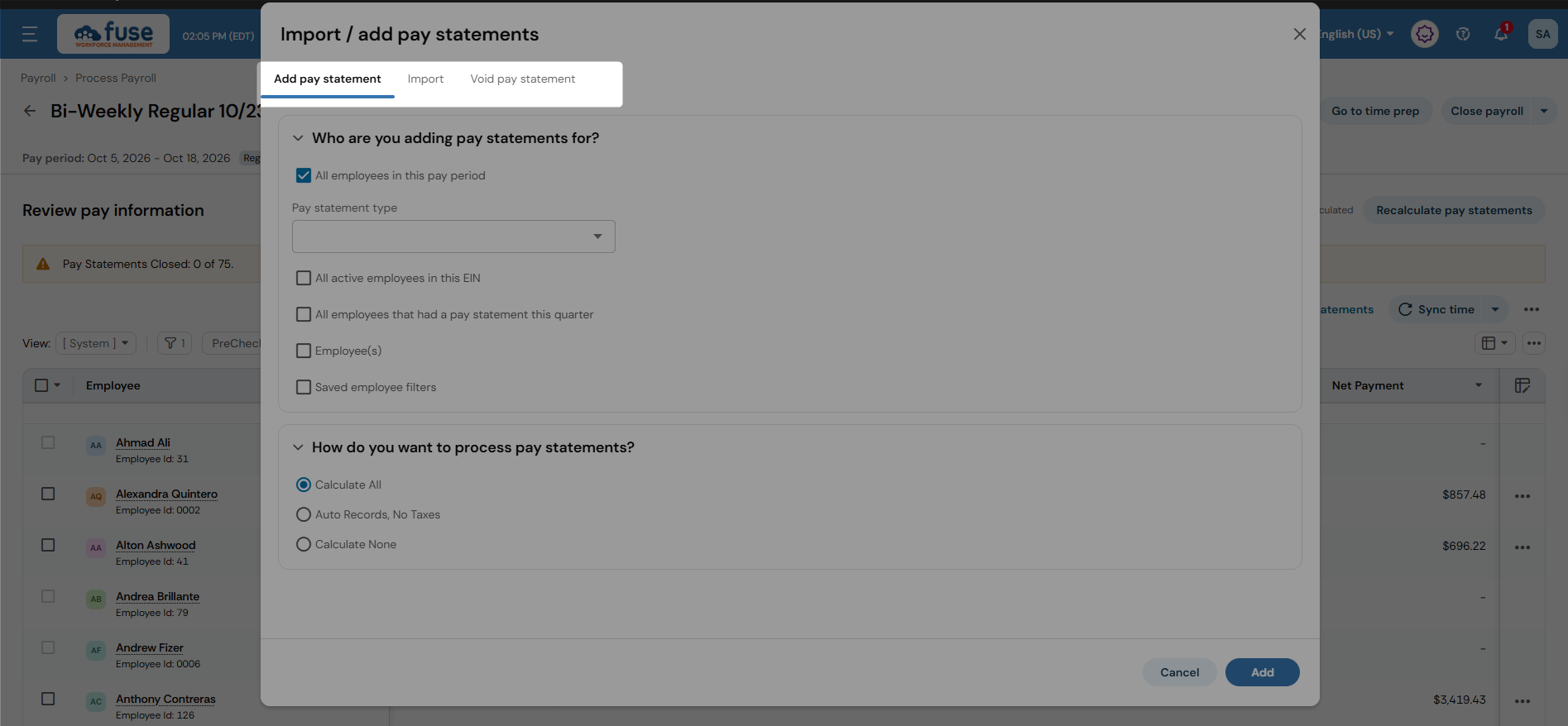
This pop-up includes three tabs.
- Add pay statement: This tab will allow you to add pay statements for all employees on the pay period, or even one employee at a time, using the different checkboxes.
- Import: This tab will allow you to import your regular payroll data import file
- Void pay statement: This tab will allow you to void multiple pay statements at once for the same employee.
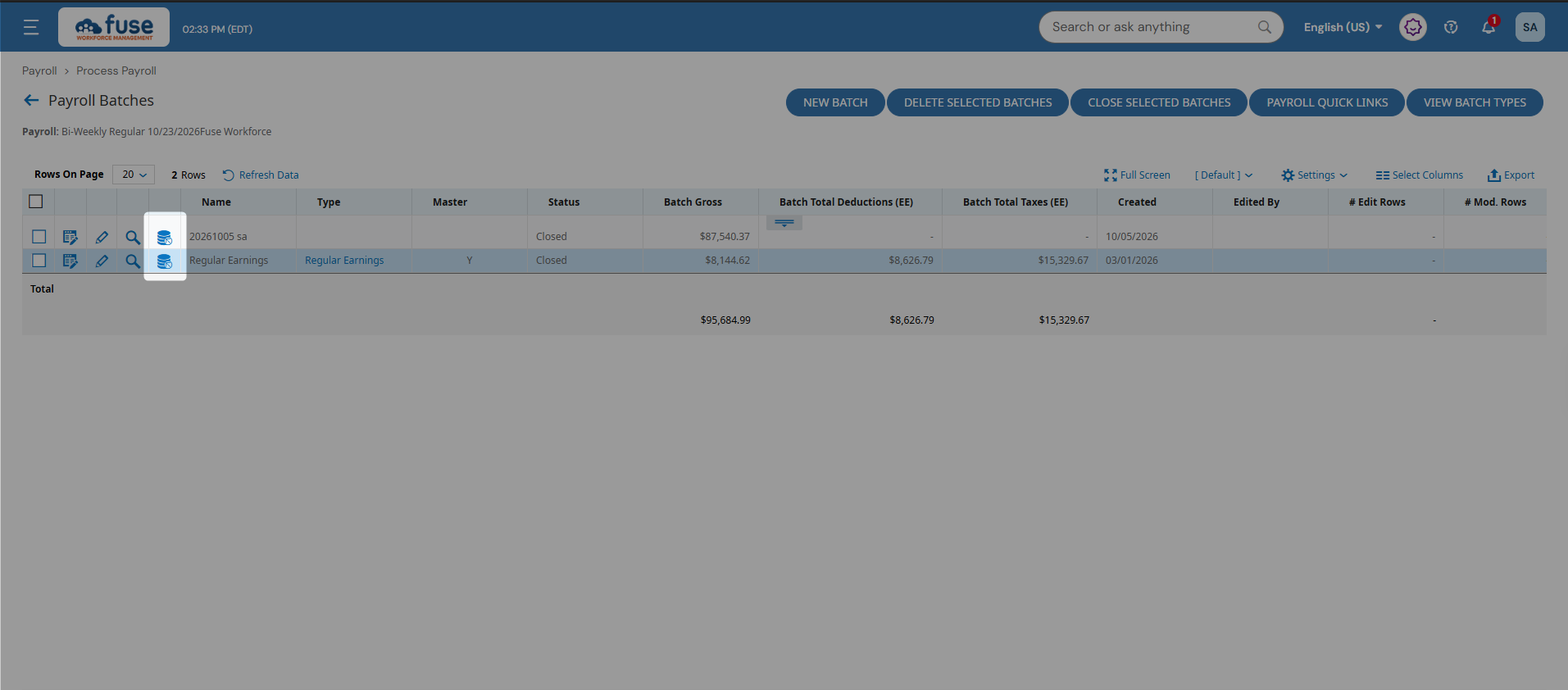
Old Payroll ExperienceInitiate Payroll
Add New Pay Statements
Import Payroll Data
|
New Payroll ExperienceInitiate Payroll, Add New Pay Statements and Import Payroll Data
|
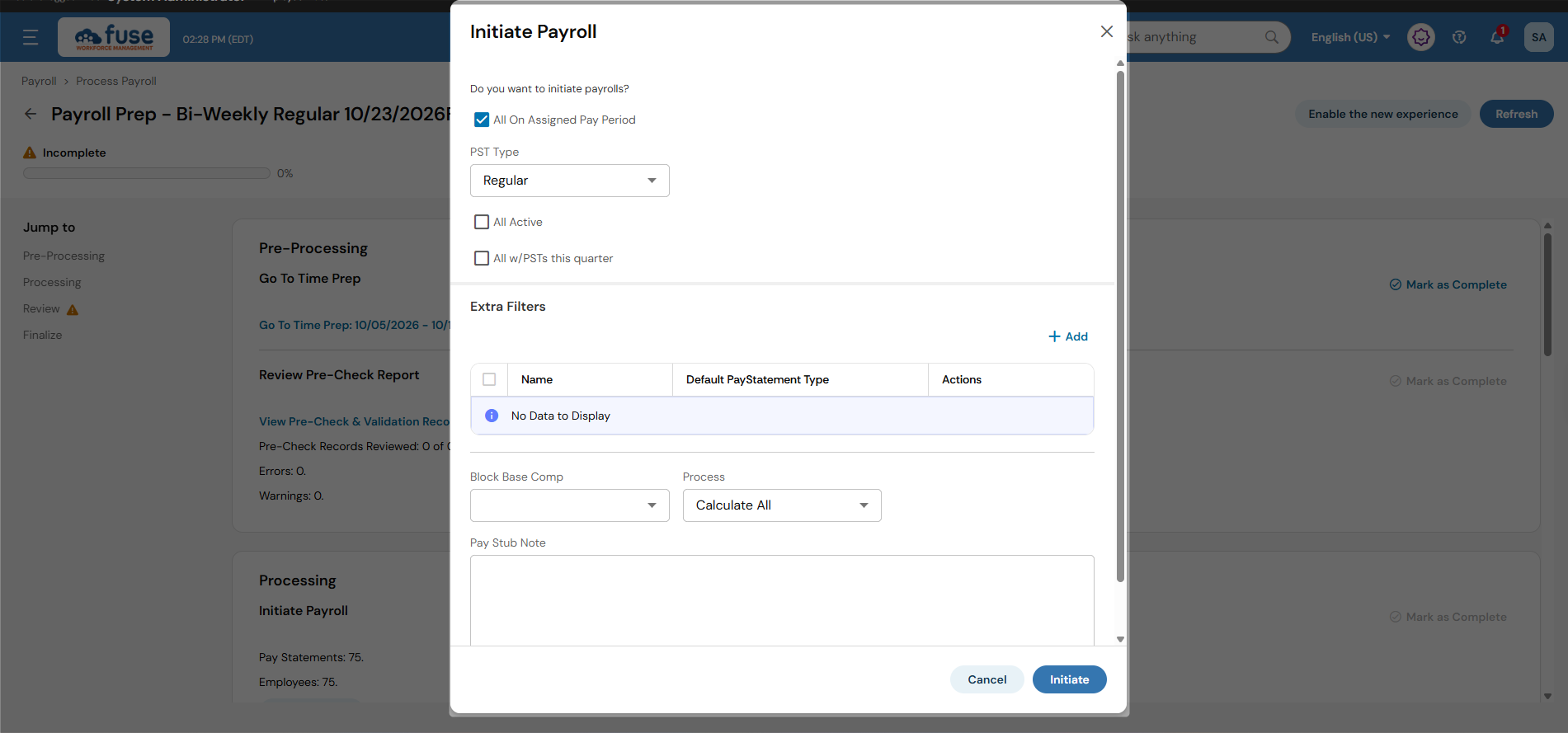
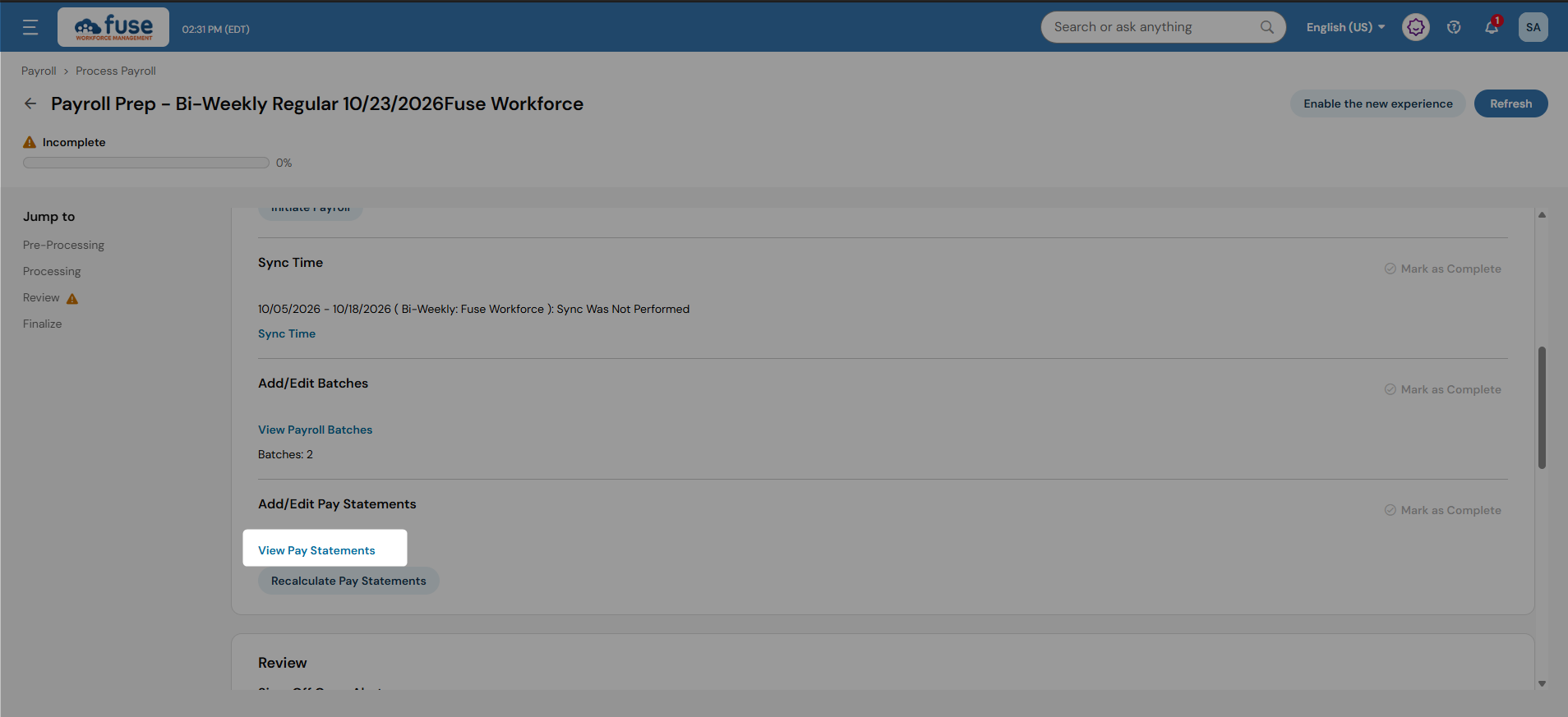
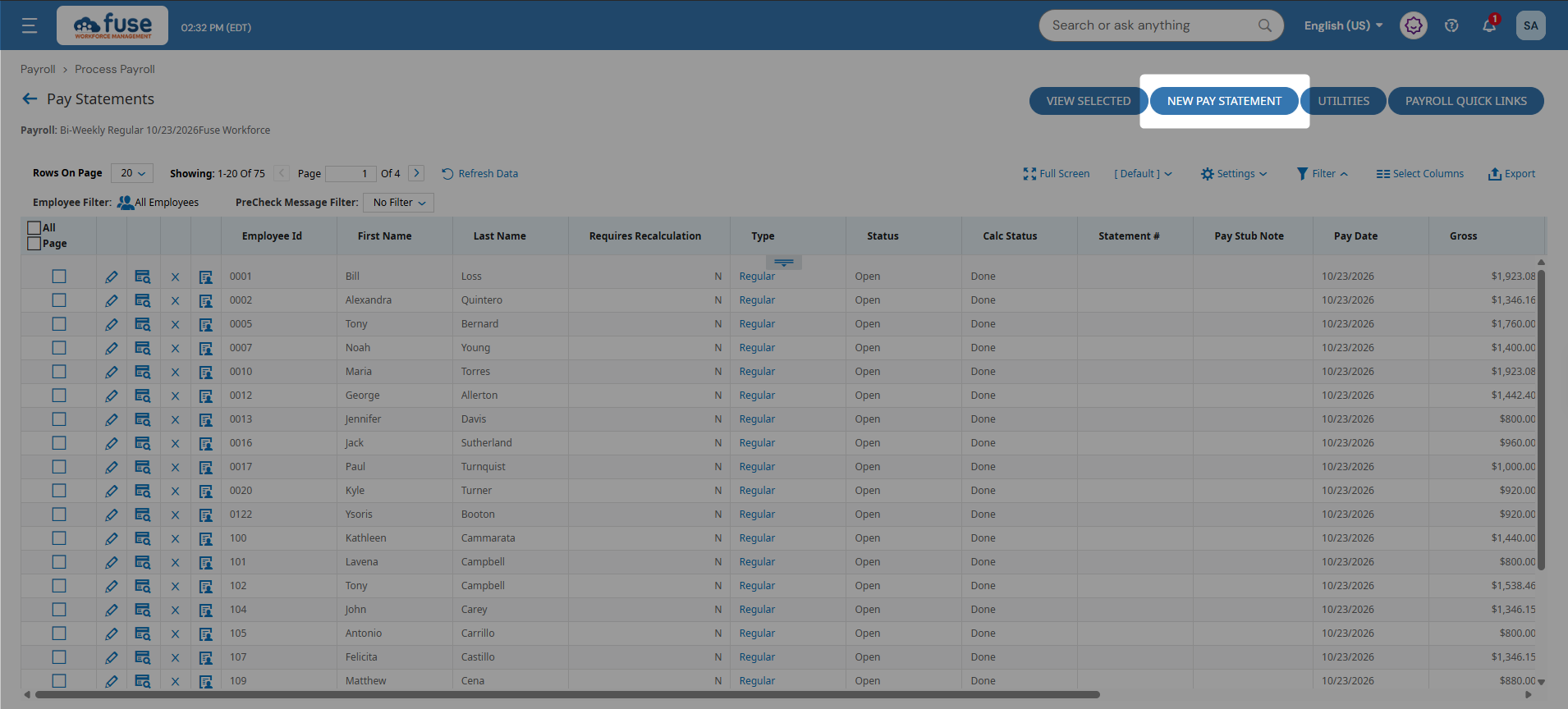
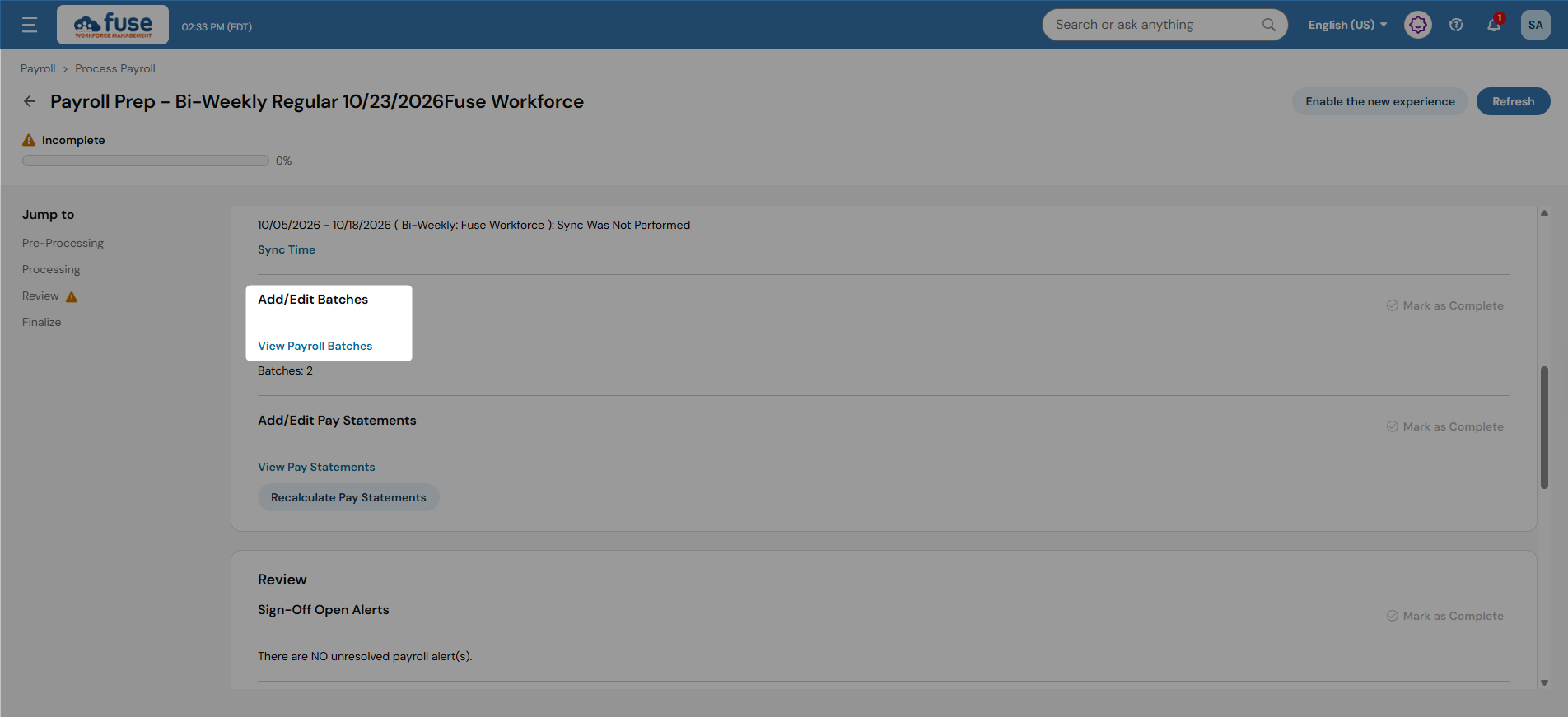
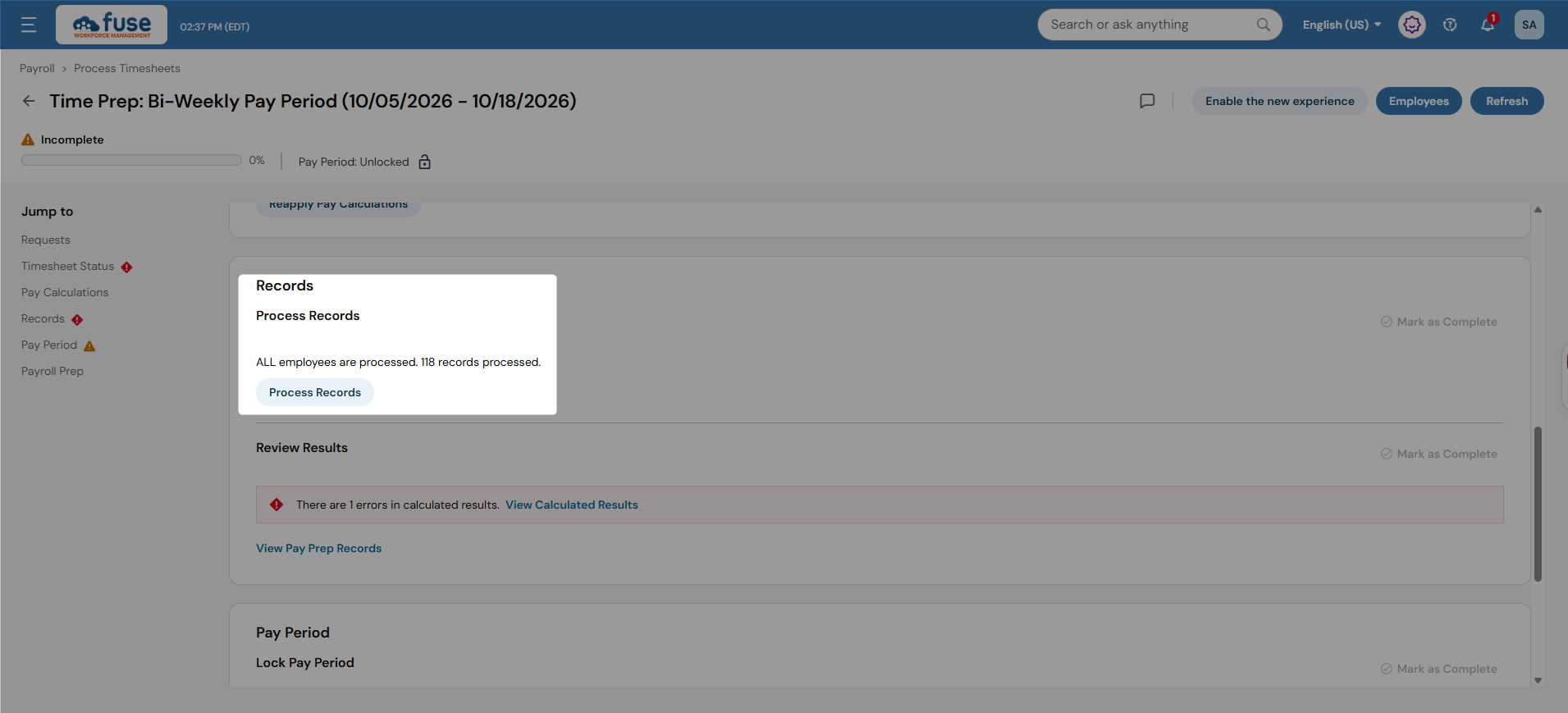
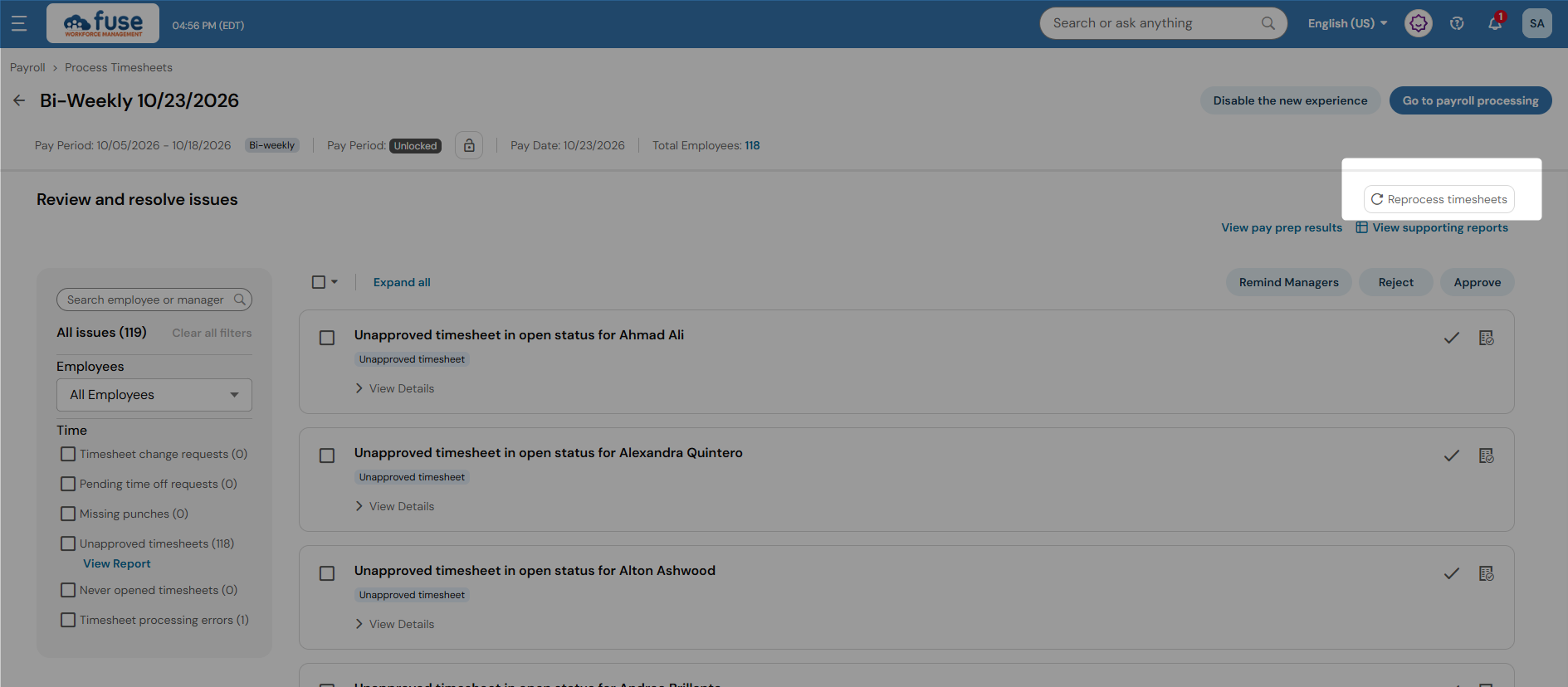
Where did "Process Timesheets" go?
Manual timesheet processing is no longer required. The system continuously processes timesheets automatically behind the scenes. If you need to manually reprocess timesheets, you can do so using the button on the top right.
Old Payroll Experience
|
New Payroll Experience
|
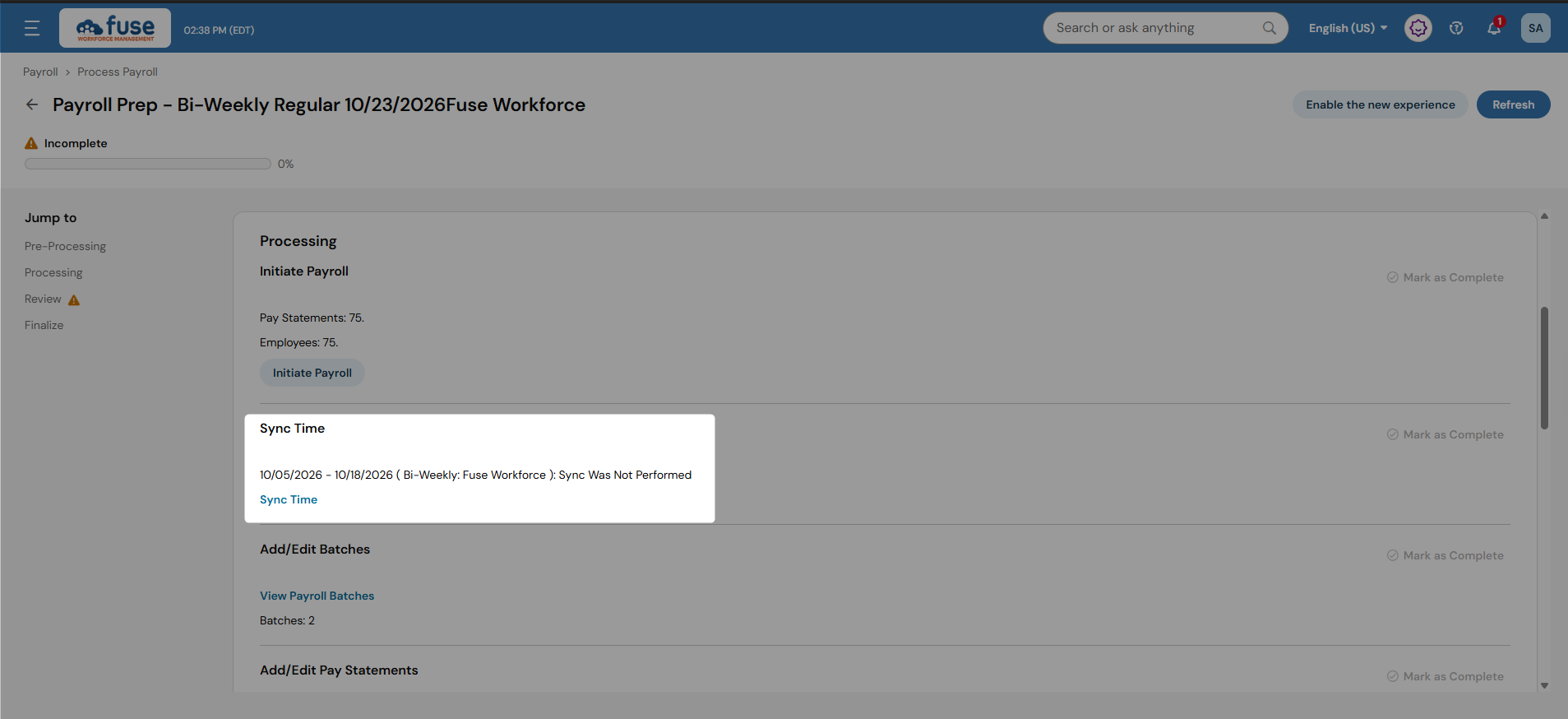
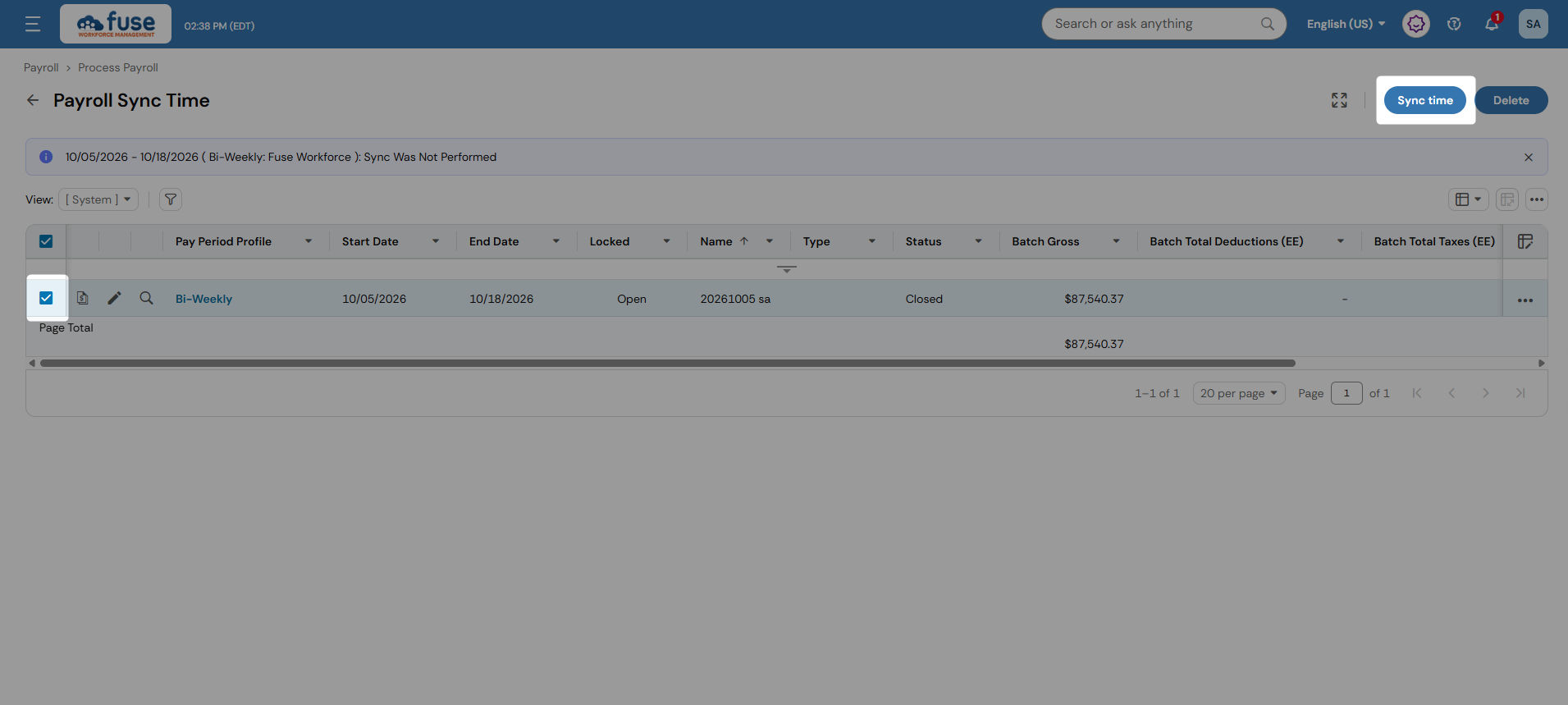
Do I still need to manually sync time to payroll?
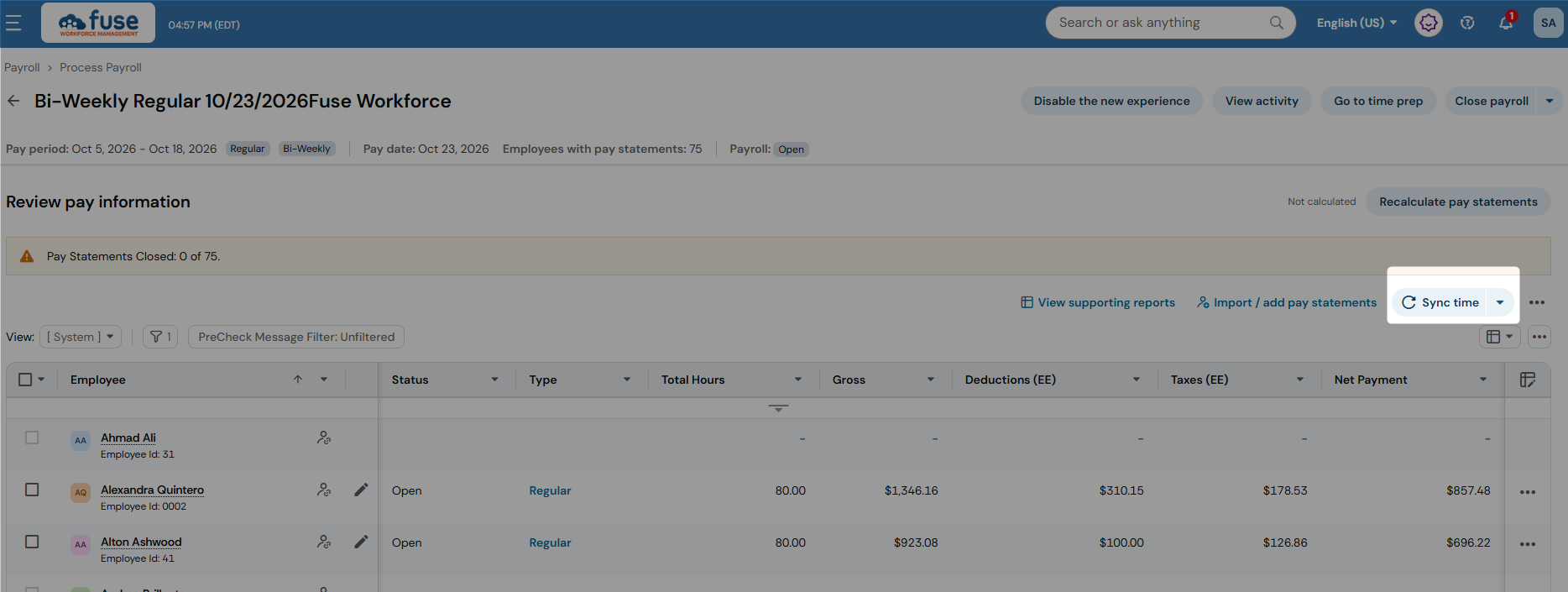
Usually, no. Time now syncs automatically as part of Continuous Payroll Processing. If you make last-minute edits and want those changes reflected immediately, you can still manually re-sync time using the Sync Time button on the top right.
Old Payroll Experience
|
New Payroll Experience
|
What changed in Payroll Processing?
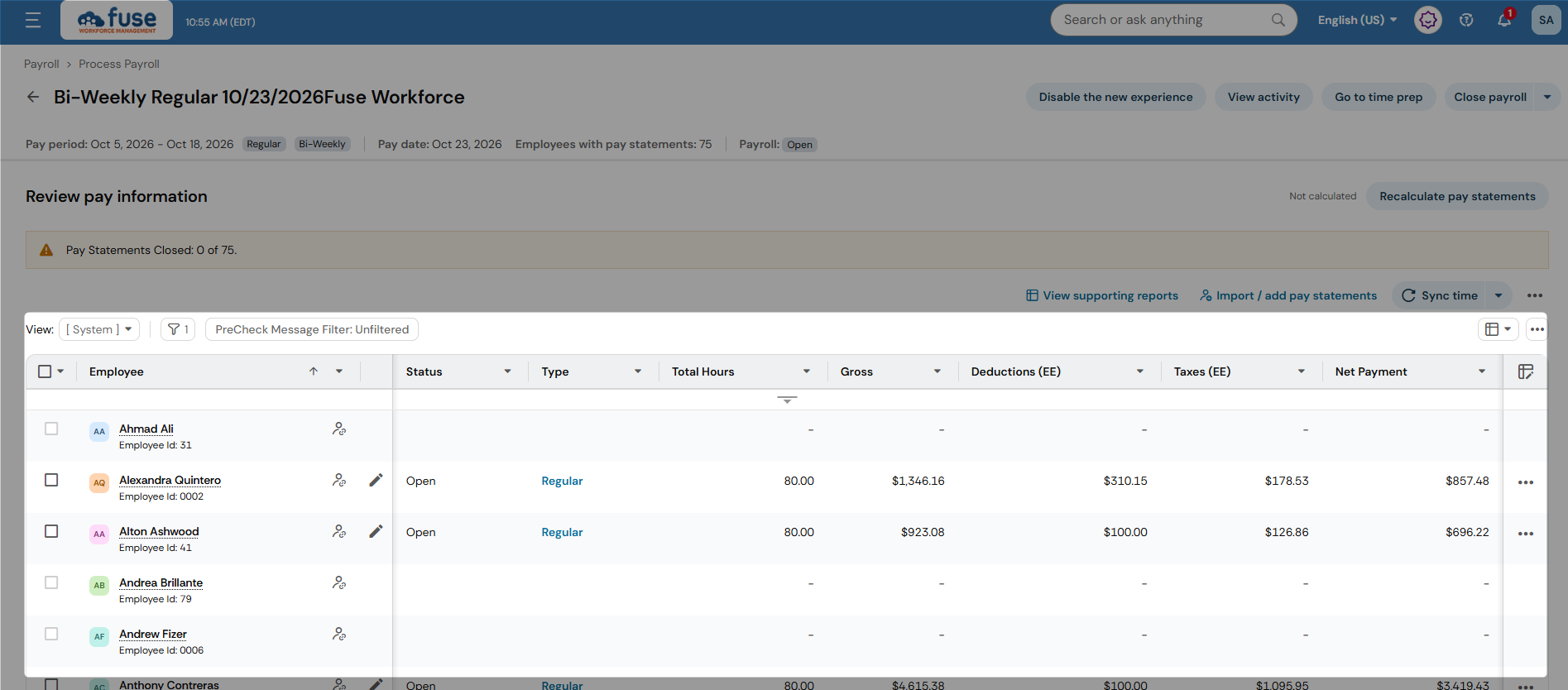
The experience has shifted from a checklist workflow to a central workspace. Instead of moving through a series of sequential steps, most payroll activities are now managed from the Pay Statements page. Common payroll actions are accessible through buttons in the upper-right corner of the screen, and all pay statements are available directly from the central workspace.
Old Payroll Experience
|
New Payroll Experience
|
Where can I preview my payroll reports?
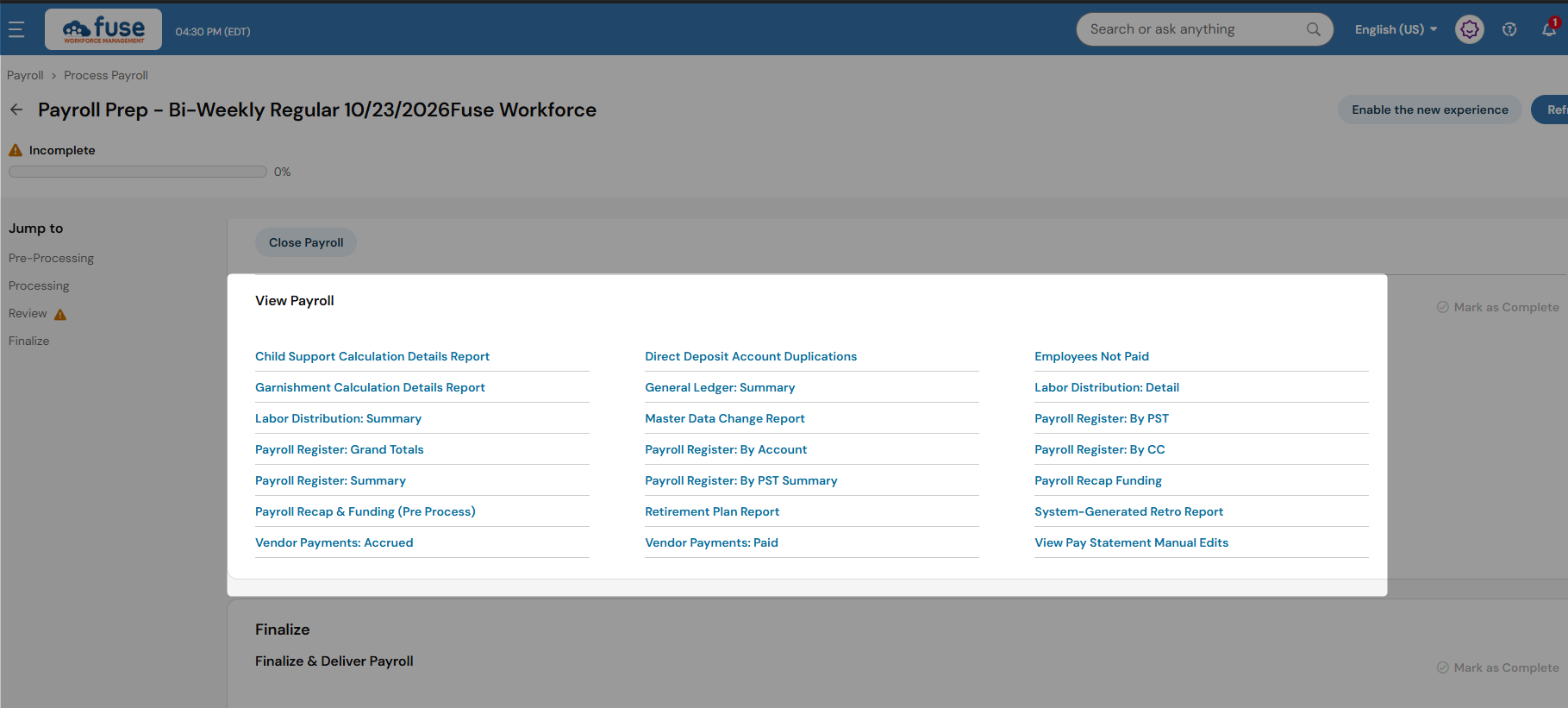
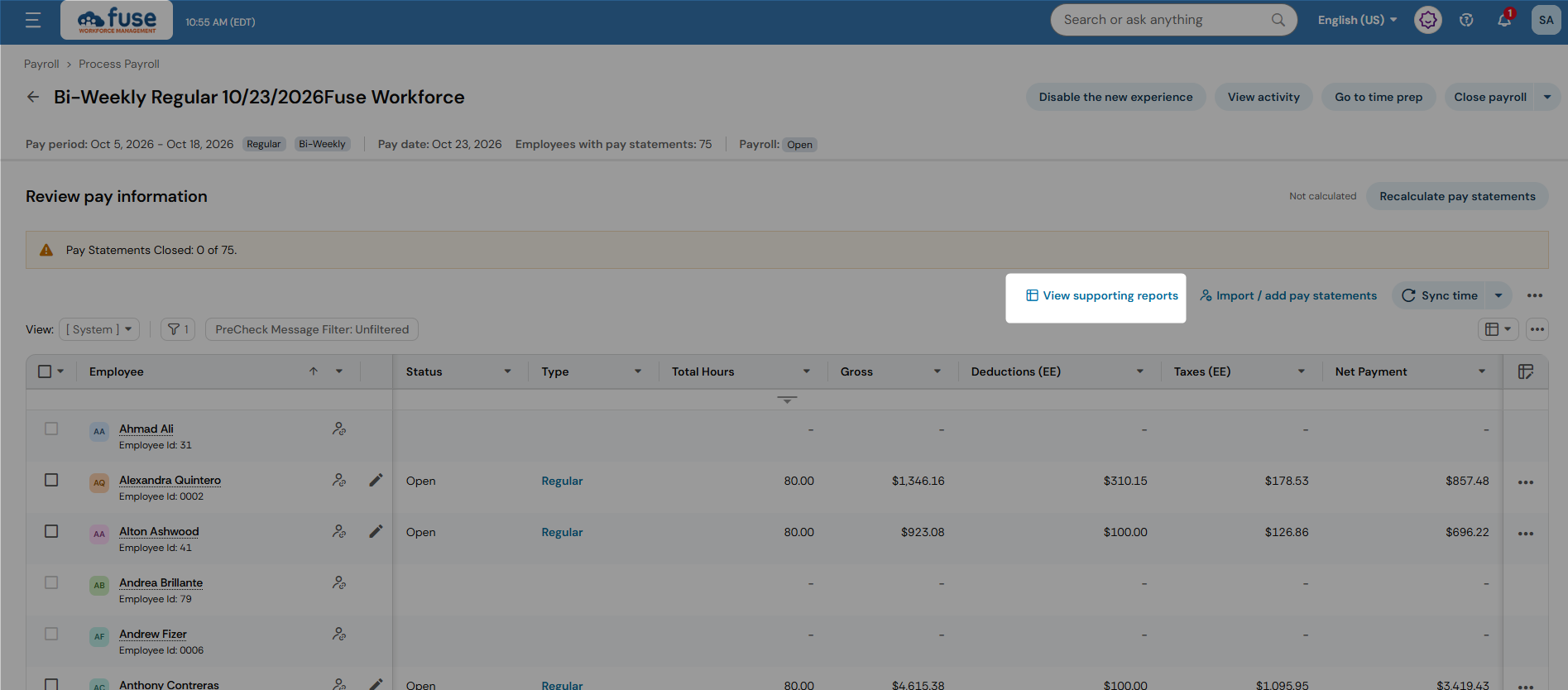
To preview your payroll reports, click the View supporting reports button. The supporting reports pop-up has reports grouped in three separate tabs:
- Pre-processing reports: includes employee maintenance reports, accrual balances, and the pre-check report
- Processing reports: includes your regular alerts, warnings, and error reports
- Review your data reports: includes your regular audit, comparison, recap & funding, registers, etc
Old Payroll Experience
|
New Payroll Experience
|
How do I close and finalize my payroll?
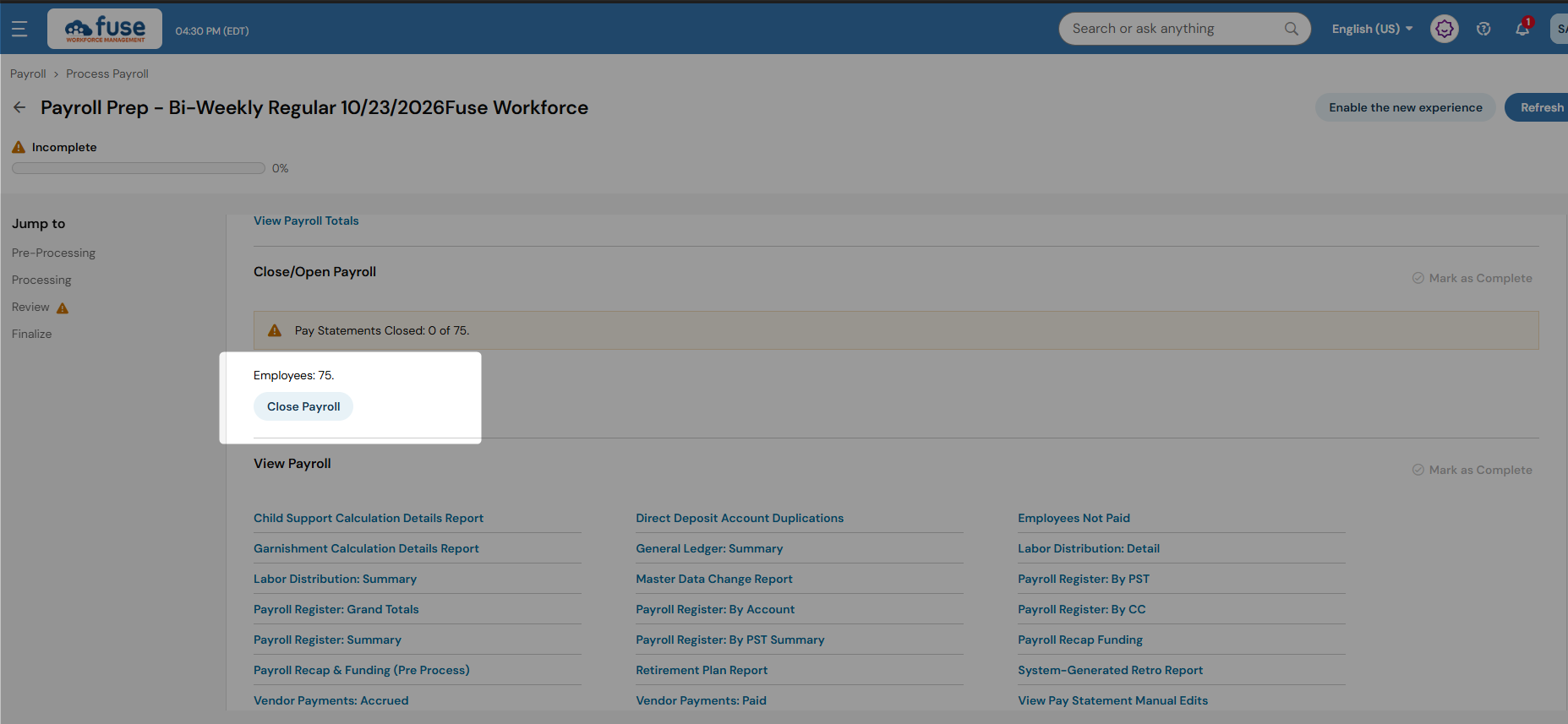
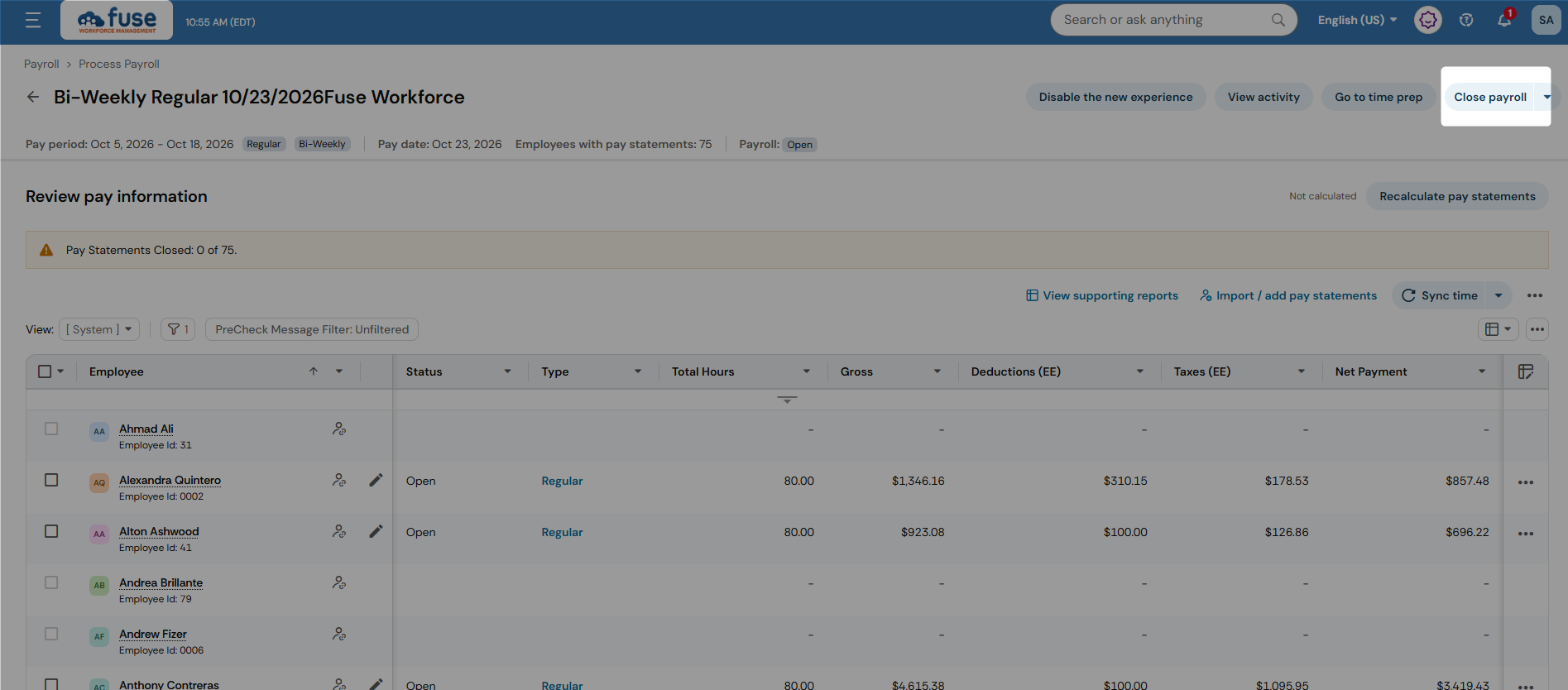
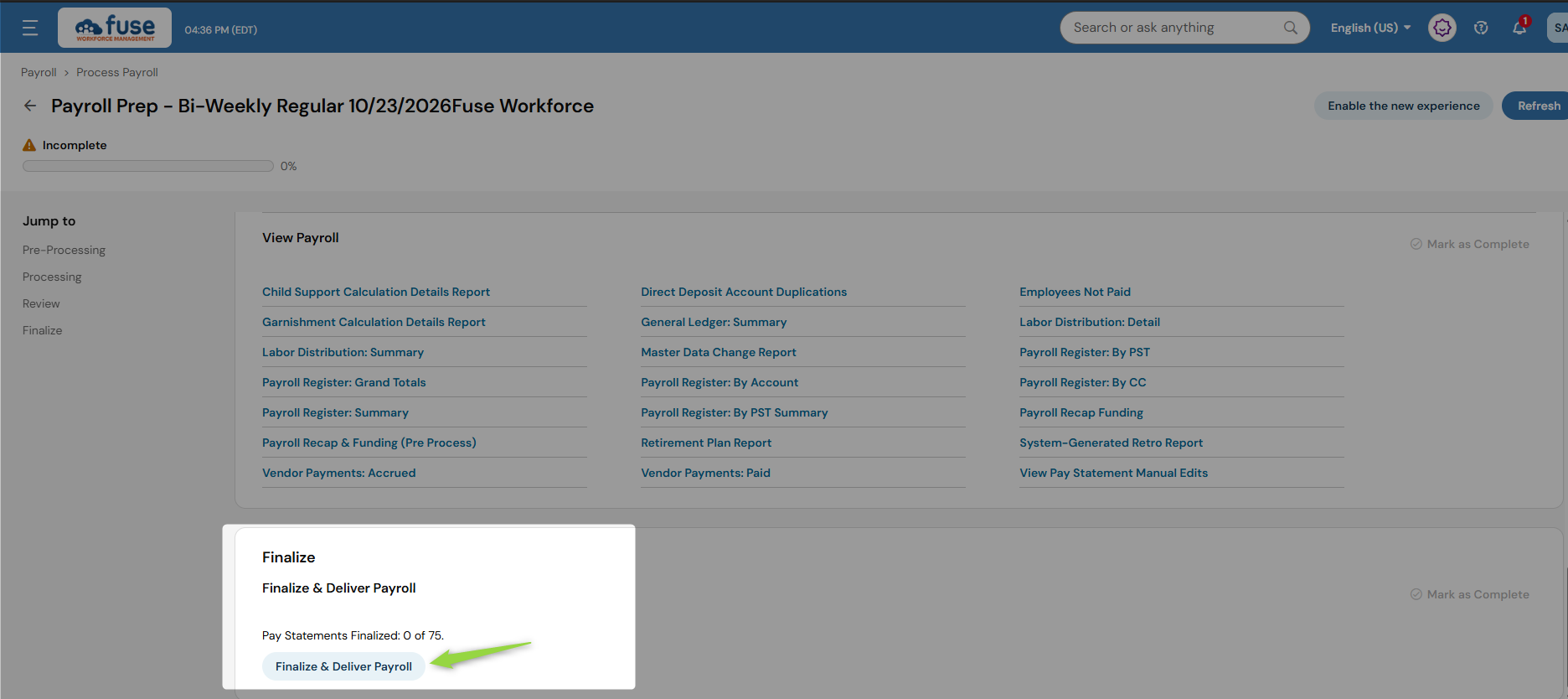
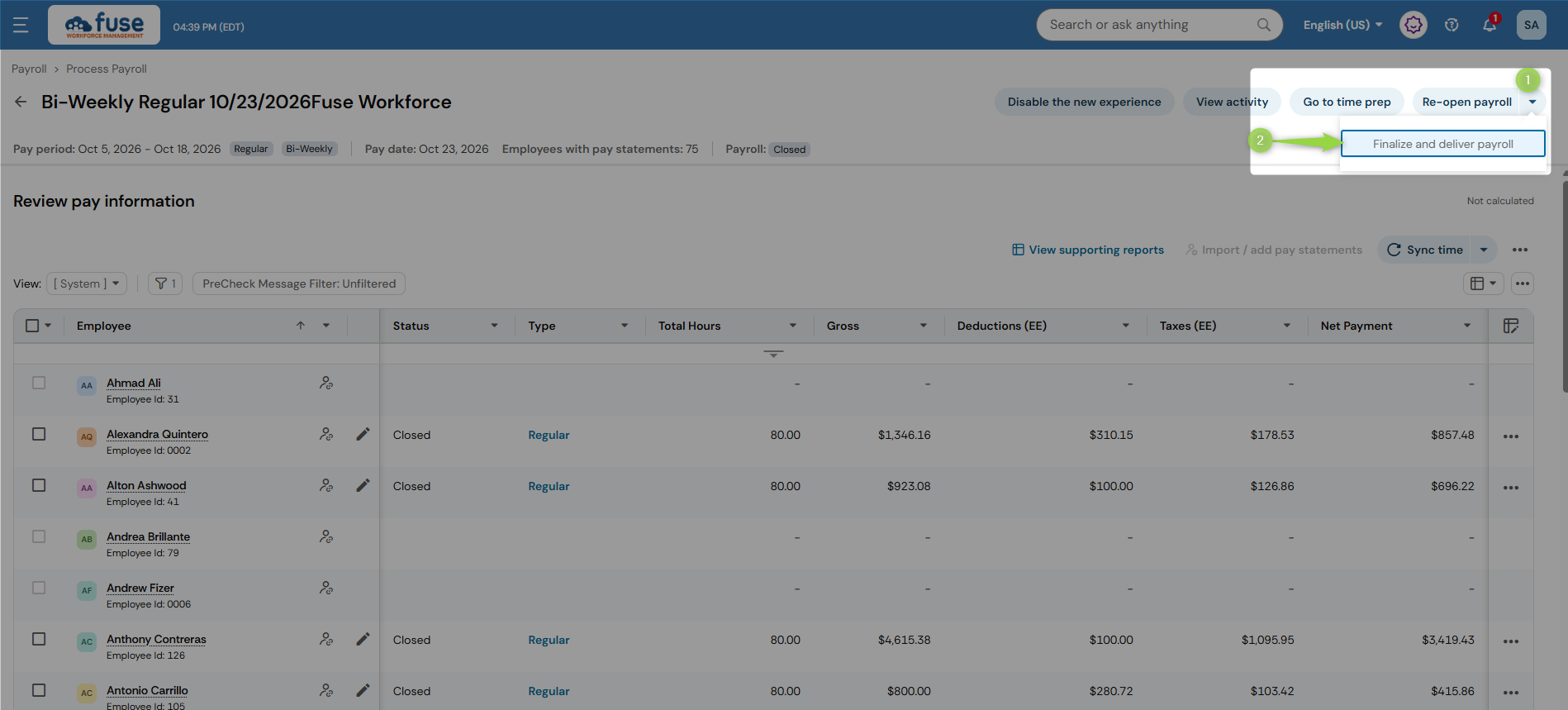
To close your payroll, use the close payroll button on the top right of the screen. Once your payroll is closed, you can use this same button to reopen, or use the arrow to finalize and deliver.
Old Payroll Experience
|
New Payroll Experience
|
|
|
|