![FUSE-workforce-management-logo.png]](https://www.fuseworkforce.com/hs-fs/hubfs/fuse-website/FUSE-workforce-management-logo.png?height=40&name=FUSE-workforce-management-logo.png)
Before you Begin
-
Compenstion Cycles must be created and open before they can be submitted. Your administrator should complete this process.
-
Compensation worksheets cannot be approved until they are submitted. View our knowledge base article to approve/modify/reject a compensation worksheet that has already been submitted.
How to Submit a Worksheet
-
Navigate to Team > Compensation > Proposals
-png.png?width=749&height=272&name=260225%20M%20FuseDemo1%20Compensation%20Proposals%20Screen%20(Article%201%2c%20Step%201)-png.png)
- This report will show all the proposals/worksheets that you have access to. View this knowledge base article to learn more about reviewing the proposals report.
- Find the row of one of the employees you wish to start with, and click the edit icon.
- Click the Hide Tree button on the top right to view the rest of the employee worksheets in this group. If you do not hide the tree, the system will assume you are only updating the one employee selected from the previous report.

- From here, enter the Proposed Pay Increase using the open boxes. You can enter the proposed pay as a flat $ amount or a proposed % amount. If you have more than one Pay Type Change (like a Merit Increase and a Lump Sum Payment), you will see them as separate boxes to fill in.
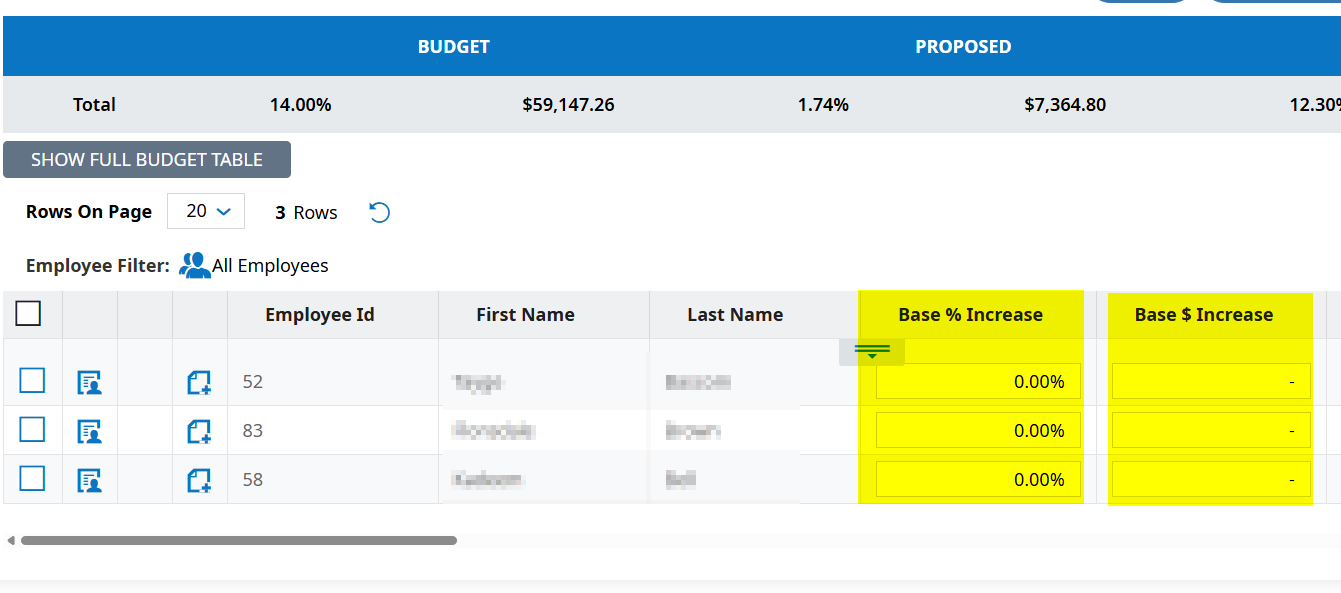
- Press the Save button
- Once your worksheet is ready for approval, use the checkboxes to select each row and click the Send to Approve button on the top right
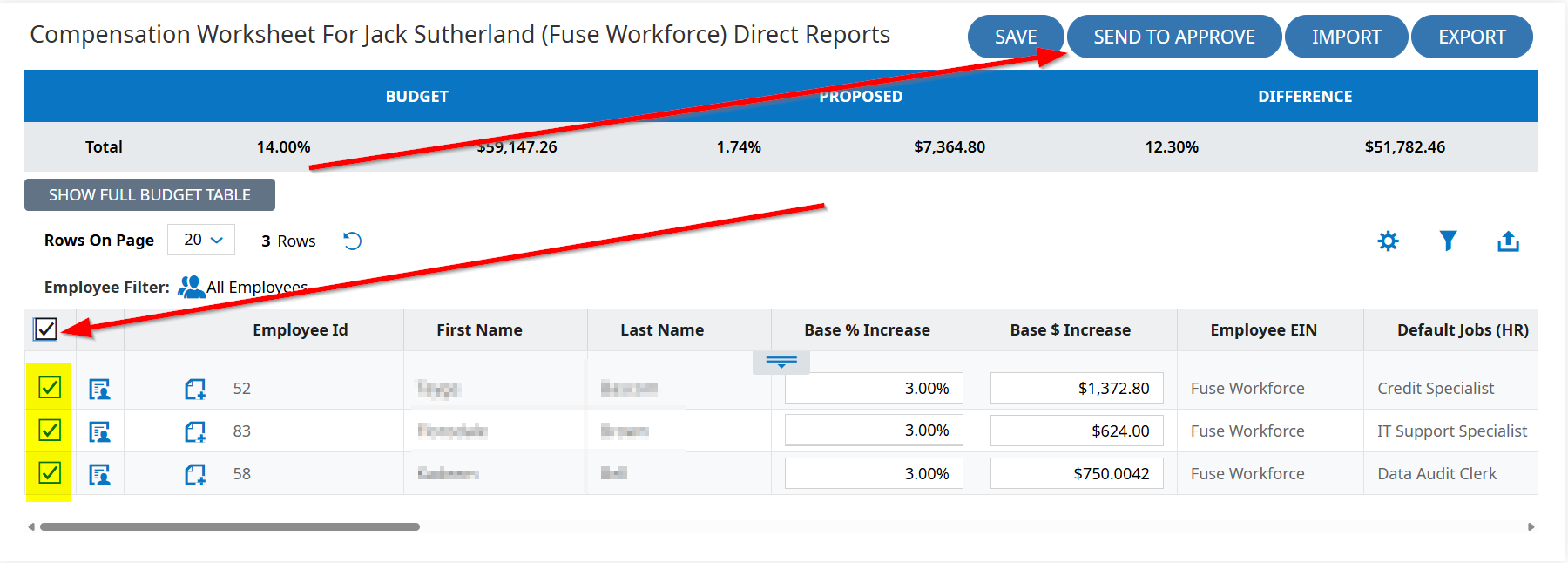
- You may have multiple worksheets, depending on whether you have employees in multiple compensation cycles. Please view your proposals report to ensure all of your proposals/worksheets show the submitted workflow status for the next available approver to complete their steps.
