![FUSE-workforce-management-logo.png]](https://www.fuseworkforce.com/hs-fs/hubfs/fuse-website/FUSE-workforce-management-logo.png?height=40&name=FUSE-workforce-management-logo.png)
Things to Keep In Mind
Here are the basics of what needs to be updated in the system. For more information, please review our Domestic Partner Handling Knowledgebase Article.
| Component | Tax Treatment | Payroll Action |
| Employee's share for eligible dependents | Pre-Tax | Regular Section 125 pre-tax deductions used |
| Employee's share for domestic partner | Post-Tax | Separate post-tax deductions used |
| Employer's share for eligible dependents | Nontaxable | None (use employer portion of regular pre-tax deduction for reporting purposes only) |
| Employer's share for domestic partner | Taxable Fringe | Imputed income paid as a Custom Taxable Fringe earnings code |
- You will need the Fair Market Value of the coverage for a domestic partner or a domestic partner's children who do not qualify as tax dependents.
- You will need both the employee and the employer portions broken out.
- You may need to work with your broker for this information.
- This process may seem long, but once the initial configuration is in place, it will be easy to maintain moving forward. The amounts will be automated, and only require updates if your carriers adjust your rates.
HR Custom Fields
The first item to build in this automation are the HR Custom Fields to keep track of the domestic partner status and enable eligibility for both the current and new domestic partner benefit plans.
- Navigate to Settings > HR Setup > Custom Fields
- Click the Add New Field on the top right of the screen
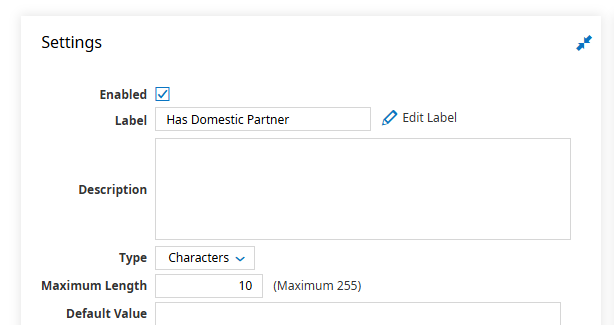
- Ensure your field is Enabled and name it something that will be easy to remember:
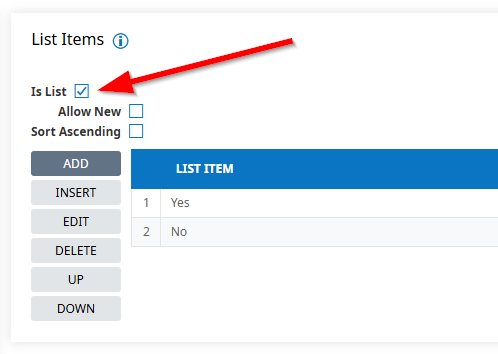
- Mark the Is List Checkbox and add options for Yes and No. Make sure that your 'Allow New' checkbox is NOT marked so that employees will not be able to add their own options
Enrollment Questionnaire
To allow employees to self select their domestic partner status during benefit enrollment, we will need to build a benefit questionnaire.
- Navigate to Settings > HR Setup > Form Questionnaires
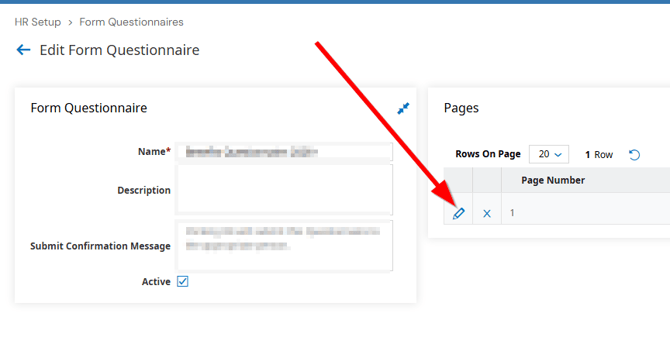
- Click the edit pencil icon on that row to edit your current Benefit Questionnaire. If you do not currently use a benefit questionnaire, see the next section about adding a new one.
- If you do not have a current benefit enrollment questionnarie, click the Add New button on the top right, and select the Benefit Enrollment questionnaire type.
- On this screen, enter the name of this benefit enrollment questionnaire, and click the Add New Page button on the top right.
- Click the pencil icon next to the page number
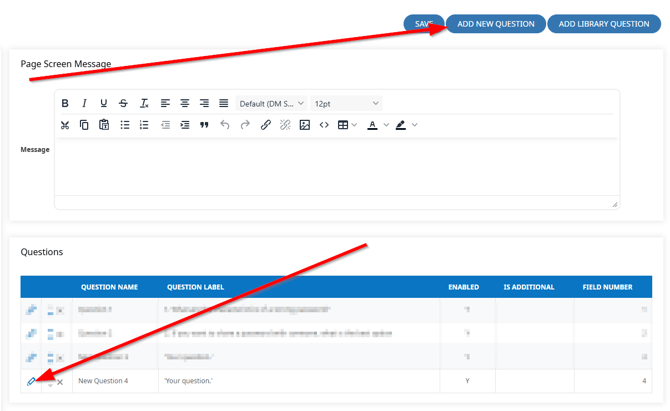
- Click Add New Question, then click the pencil icon to edit that new question:
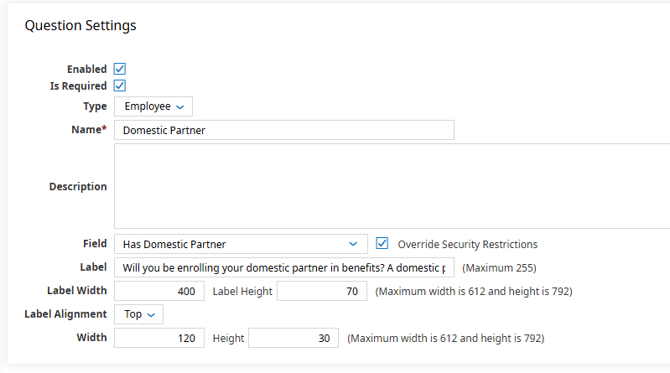
- You will need to update the question:
- Enabled = Yes
- Is Required = Yes
- Type = Employee
- Name = Domestic Partner
- Field = Has Domestic Partner (this field should match the name of your custom field you created in the first step)
- Mark the Override Security Restrictions box on the Field row. This will allow anyone completing this questionnaire to update that field during enrollment, no matter what security profile they are assigned.
- Label = Enter the Question you wish the employee to see during the enrollment process. This can be anything from "Will you be enrolling your domestic partner in benefts?" to something with more details. There is a limit of 255 characters
- Depending on the size of your question, you may want to adjust the label width and height. Here is an example of what your question may look like:
- After completing these steps, you will need to review your benefit profile to ensure the questionnaire is attached properly.
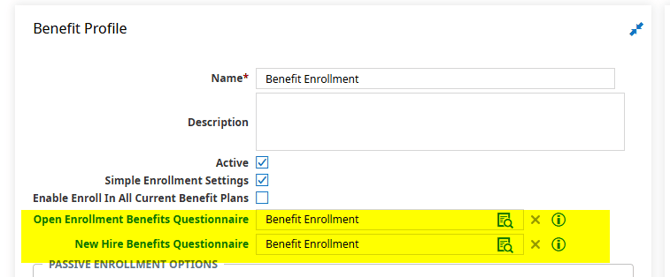
- Navitage to Settings > Profiles/Policies > Benefits > Profiles
- Click the edit pencil on the Benefit profile
- Ensure the questionnaire is included as both the open enrollment and new hire enrollment questionnare:
Benefit Plan Updates (Current Plans)
Current benefit plans should be updated so that employees enrolling in domestic partner benefits are only going to see the new plans they are eligible for.
- Navigate to Settings > Profiles/Policies > Benefits > Plans
- Click on the Name of the benefit plan that we need to update
- Click the magnifying glass next to the Eligibility Filter
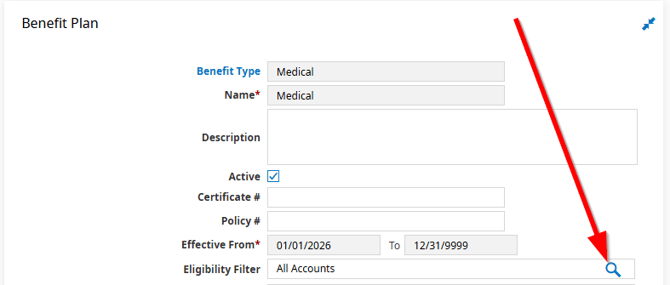
- Click the Add button to add a new filter, then find your custom field using the Like filter and the name of your custom field. Click the flag to choose this filter:
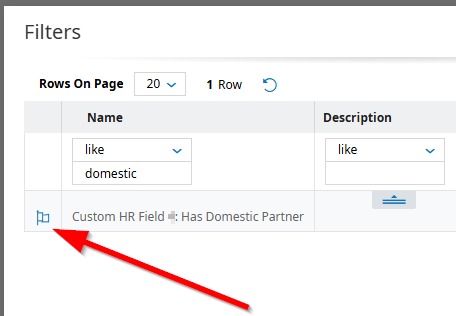
- Update the custom filter to Yes, and then click the NOT button. This will ensure that everyone is eligible for this plan, but NOT if they went through benefit enrollment and answered Yes to the new questionnaire. Click Select to add your filter.
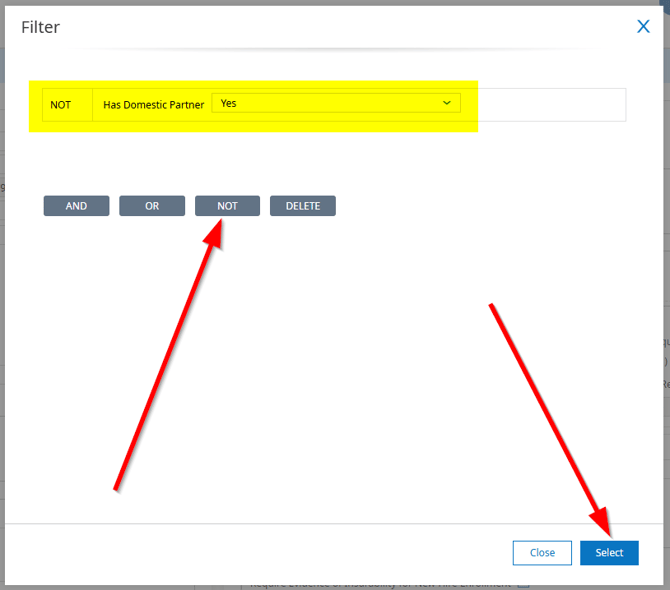
- Complete this for any benefit plan that we will be adding a new Domestic Partner Version in our next step.
New Domestic Partner Benefit Plans
- Navigate to Settings > Profiles/Policies > Benefits > Benefit Plan Designer
- Click Add New Plan
- Choose the settings for this new plan
- Plan Type
- Number of Earnings/Deductions = 3
- Coverage Type: how your coverage is calculated. If you have a flat amount per plan level, the most commonly used coverage type is Premium.
- Coverage Levels = Enter the number of coverage levels needed. For example, Employee + Domestic Partner, Employee + Domestic Partner + Children would be two separate coverage levels.
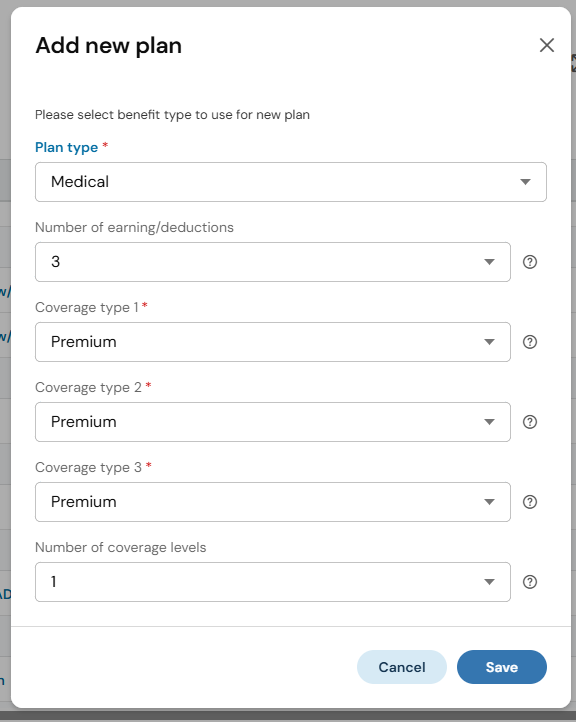
- Follow the wizard, answering all questions appropriately.
- Eligibility and waiting period section
- choose Yes, I'd like to define new eligibility condiions
- Select the Copy from another plan button
- Choose the other benefit plan of this same type
- Update that filter to show the same HR Custom Field shows Yes
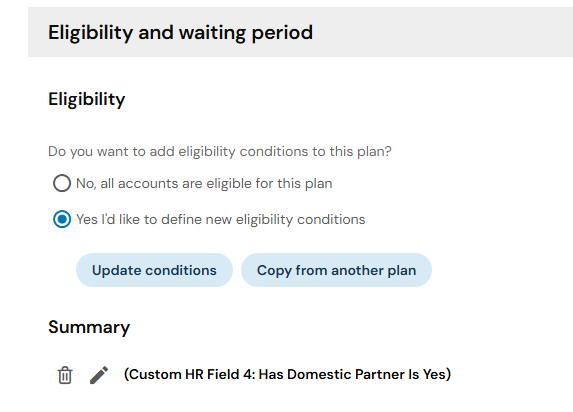
- Copy the waiting period from the same plan type, as well
- Earnings/Deductions:
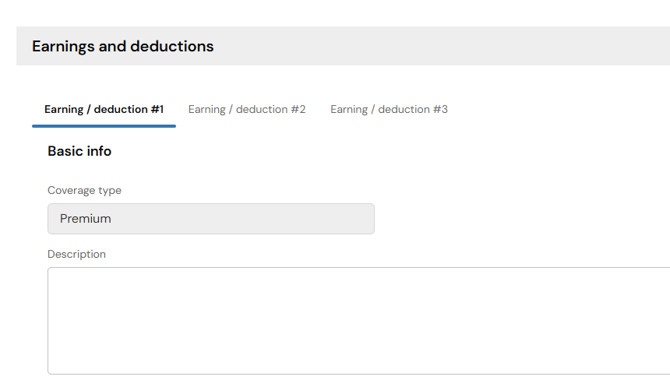
- There are three separate Earnings/Deduction tabs to enter data
- Earning/Deduction #1
- Description: Employee's share for eligible dependents
- Earning/Deduction: choose your regular pretax deduction type
- Earning/Deduction #2
- Description: Employee's share for domestic partner
- Earning/Deduction: choose your post-tax deduction type for this same benefit
- Earning/Deduction #3
- Description: Employer's share for domestic partner
- Earning/Deduction: choose your Deomestic Partner fringe benefit earning
- Coverage Levels:
- Update the Coverage Level name on each Coverage Level Tab
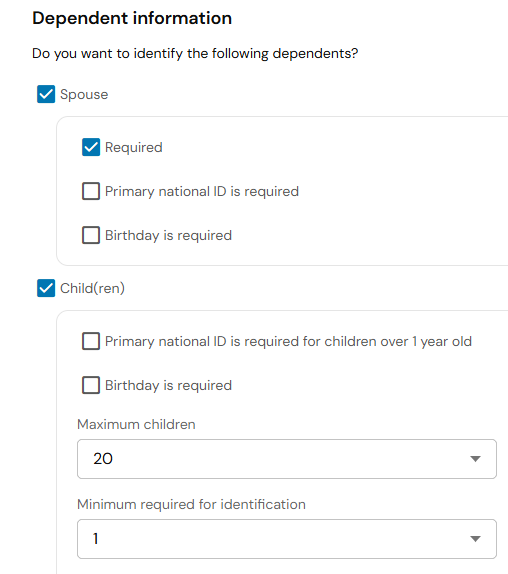
- Each Coverage Level tab should also have the Dependent requirements filled in so that employees can select their domestic partner or children as needed. The following is an example for a coverage level that requires both domestic partner AND children be reported:
- To manage or add coverage levels, choose the Manage coverage levels option on the top right. You can clone a level, delete a level, or rearrange them from this popup.
- Pricing: This is where you will enter in the pricing you received from your broker:
- Earning/Deduction #1: Pretax Deduction
- Enter the total Monthly premium of the plan, but only including the portion attributed to the employee and their eligible dependents
- Enter the employee's Monthly premium of the plan, but only including the portion attributed to the employee and their eligible dependents
- Earning/Deduction #2: Post-Tax Deduction
- Enter the total monthly premium, but only the portion of the employee's contribution amount that would be attributed to the domestic partner benefits
- Do not enter anything into the Employer contribution amount on this row
- Earning/Deduction #3: Custom Taxable Fringe Earning
- Enter the total monthly premium, but only the portion of the employer's contribution that would be attributed to the domestic partner benefits
- Do not enter anything into the Employer contribution amount on this row
- Pricing will need to be updated each plan year if your carriers make premium updates.
- Earning/Deduction #1: Pretax Deduction
- Continue with the wizard to complete the benefit plan build. You will need to complete these steps for all cafeteria plan benefit plans.
Adding the Plans to the Benefit Profile
To allow employees to see these new benefit plan options during enrollment, they will need to be added to the benefit profile.
- Navigate to Settings > Profiles/Policies > Benefits > Profiles
- Click the pencil icon on the profile you with to update
- Click the Add Plans button on the top right
- Select the Existing Group and use the filter to find your new plan(s). Keep in mind that items like Medical, Dental, and Vision should have separate groups and will need to be added separately. Use the checkbox and click Add Selected Plans
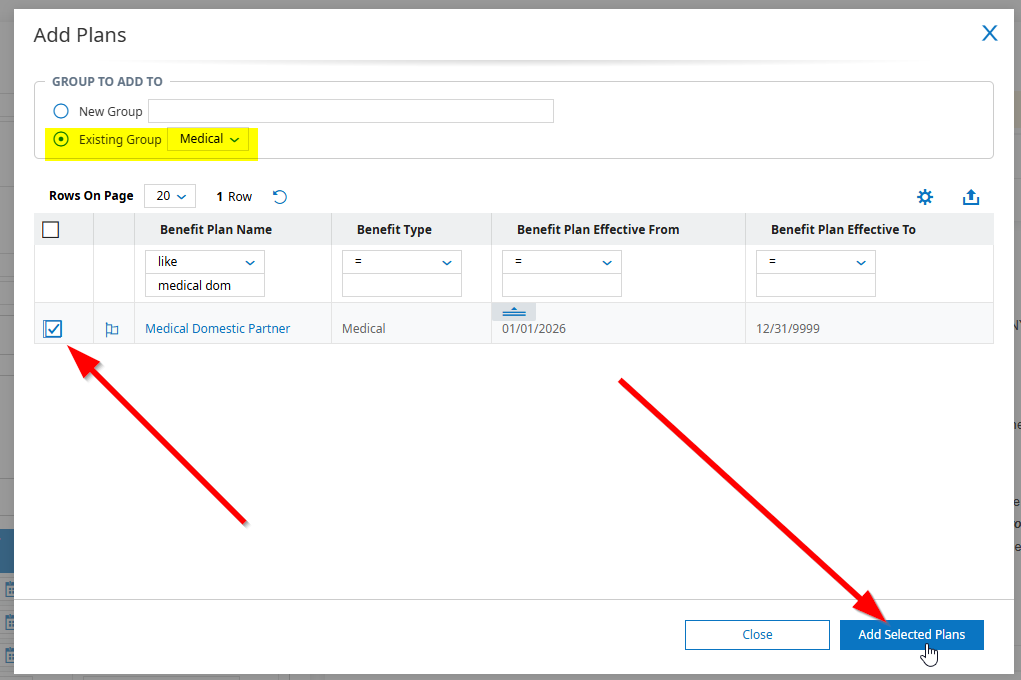
- Because you added your eligibility filters earlier in this process, employees should only see the plans they are eligible for, based on the answers in their questionnaire.
EverythingBenefits
If you are using EverythingBenefits for EDI, there are other items that need to be reviewed when making changes to benefit plans in Fuse.
When new benefit plans are added, they need to be attached to an employee profile so that we can notify EverythingBenefits to update the mapping to include those plans correctly. If you are adding multiple benefit plan types, but will not be using all of them right away, those other plans will need to be attached to a test employee so that the mapping can be updated now, and not wait until later on. If it isn't mapped properly, and attached to an employee later on, it could possibly be missed and excluded from the EDI altogether.
Once your new benefit plans are created and attached to employee(s) or test employee(s), please notify support@fuseworkforce.com so we can have EverythingBenefits update the mapping.
